Quick Answer:
Yes — every LightWave® LED light sheet can be cut, but only along its printed cut lines. Generation 1 Plus, CH2 and PIXX sheets trim to straight edges, angles and stepped curves with ordinary scissors; Roll It! cuts to any length along its marked lines. PIXX must also keep its data-in to data-out direction after cutting.
Every LightWave® LED light sheet is cuttable along marked lines — trim it to any panel, frame or custom shape on site, no return trip to the manufacturer, no minimum-order shape penalty. For sign shops, exhibit fabricators, stone specialists, and anyone building a fixture that will not accept a stock rectangle, this is the feature that makes flexible LED backlighting practical instead of aspirational.
Every variant in the LightWave® line of flexible LED light sheets — Gen 1 Plus, CH2, PIXX and Roll It! — is designed to be trimmed on site with standard workshop tools. Same substrate, same technique.
What Is a Cuttable LED Light Sheet?
A cuttable LED light sheet is a flexible LED backlighting panel engineered so a fabricator can trim it to fit a specific frame, fixture or custom shape without damaging the electronics or voiding the warranty. Cut lines are pre-marked on the sheet; the trimmed section that remains is fully functional after the cut.
This matters because most real installs are not standard sizes. Sign channels are custom. Retail fixtures are custom. Millwork cavities are custom. A backlighting panel that only ships in fixed dimensions forces the fabricator to redesign around the panel — a cuttable sheet lets the panel serve the design instead.
Where can you cut an LED light sheet?
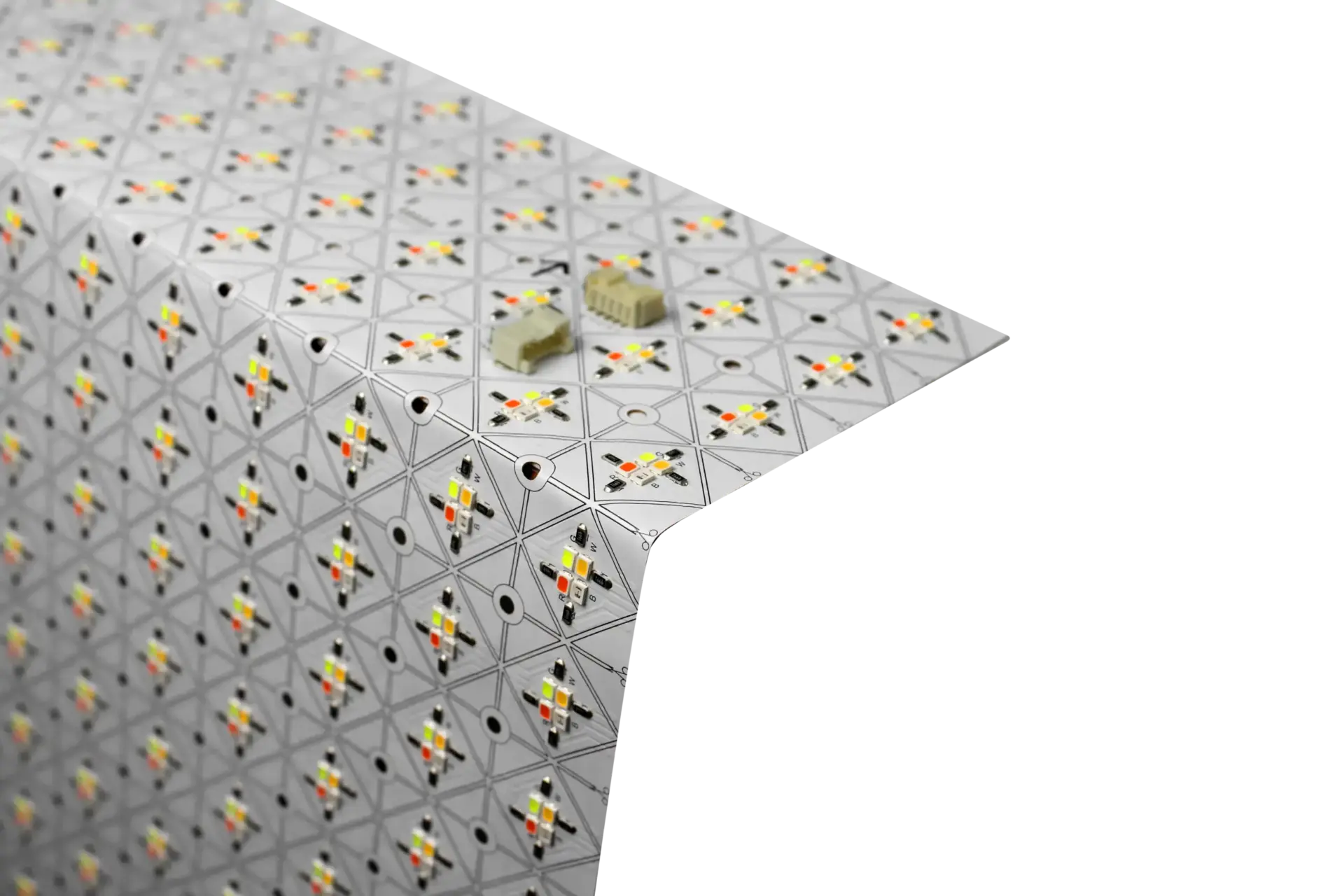
LightWave® is not “cut anywhere.” Every sheet has designated cut lines printed on the substrate. Cut on the marked lines and the remaining section keeps its power path intact. Cut between marked lines and you may sever a trace and disable the section beyond the cut.
The reason is simple: each cuttable segment is a small parallel circuit. The marked line is where the circuits divide, so the fabricator can shorten the sheet without breaking the electrical path that stays. This is standard practice across the flexible-LED industry and it is what makes on-site trimming safe.
Which LightWave® variants can be cut?
All of them. Every LightWave® variant ships cuttable along marked lines:
| Variant | Cuttable | Notes |
|---|---|---|
| Gen 1 Plus | Yes | Single color, Tunable White, or RGBW — cut same way |
| CH2 | Yes | Higher-CRI variant, cuts the same as Gen 1 Plus |
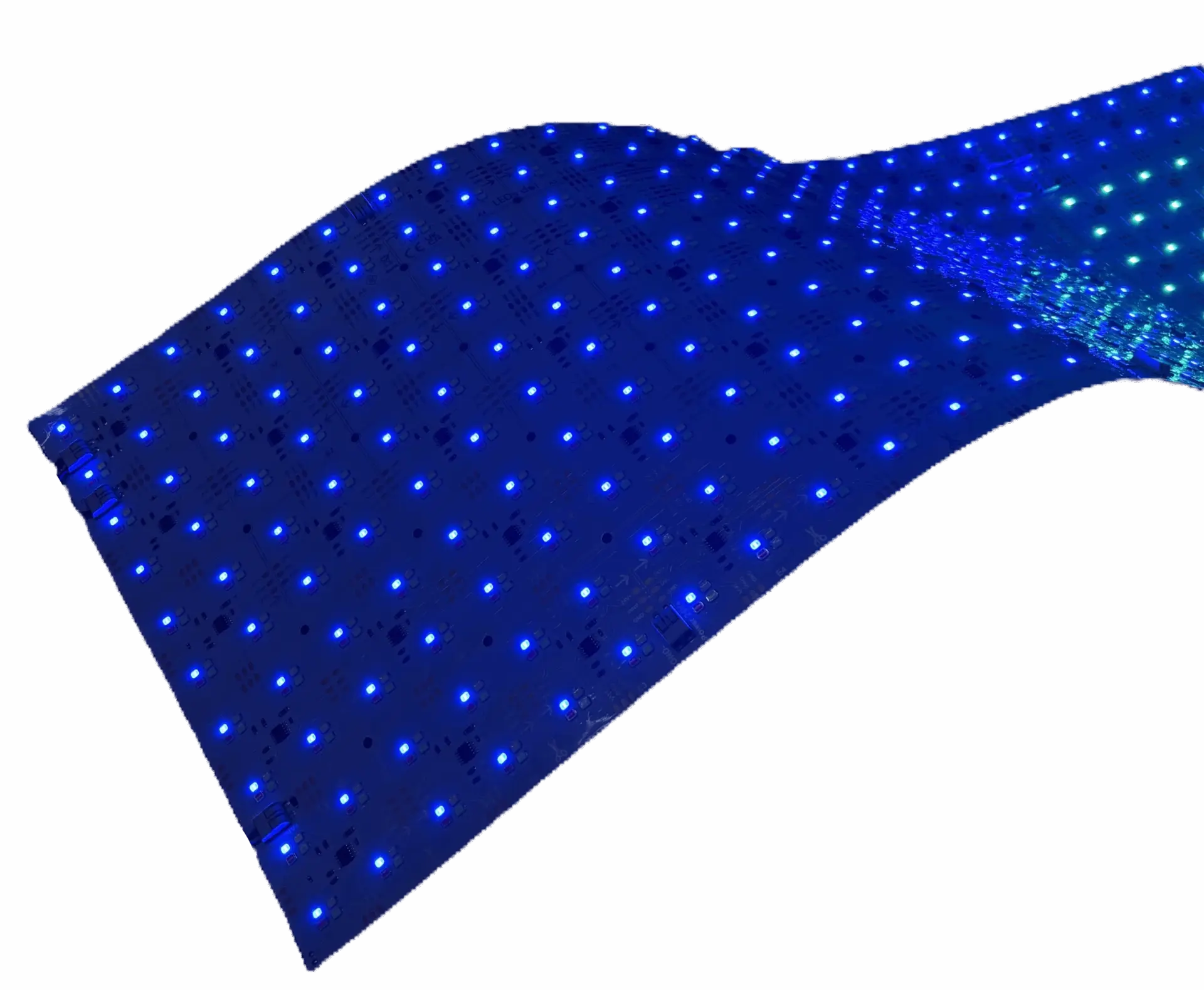
| PIXX | Yes — with a caveat | Addressable SPI. Cuts along marked lines but respect the data-in / data-out arrows — the pixel chain has to flow in order after the cut. |
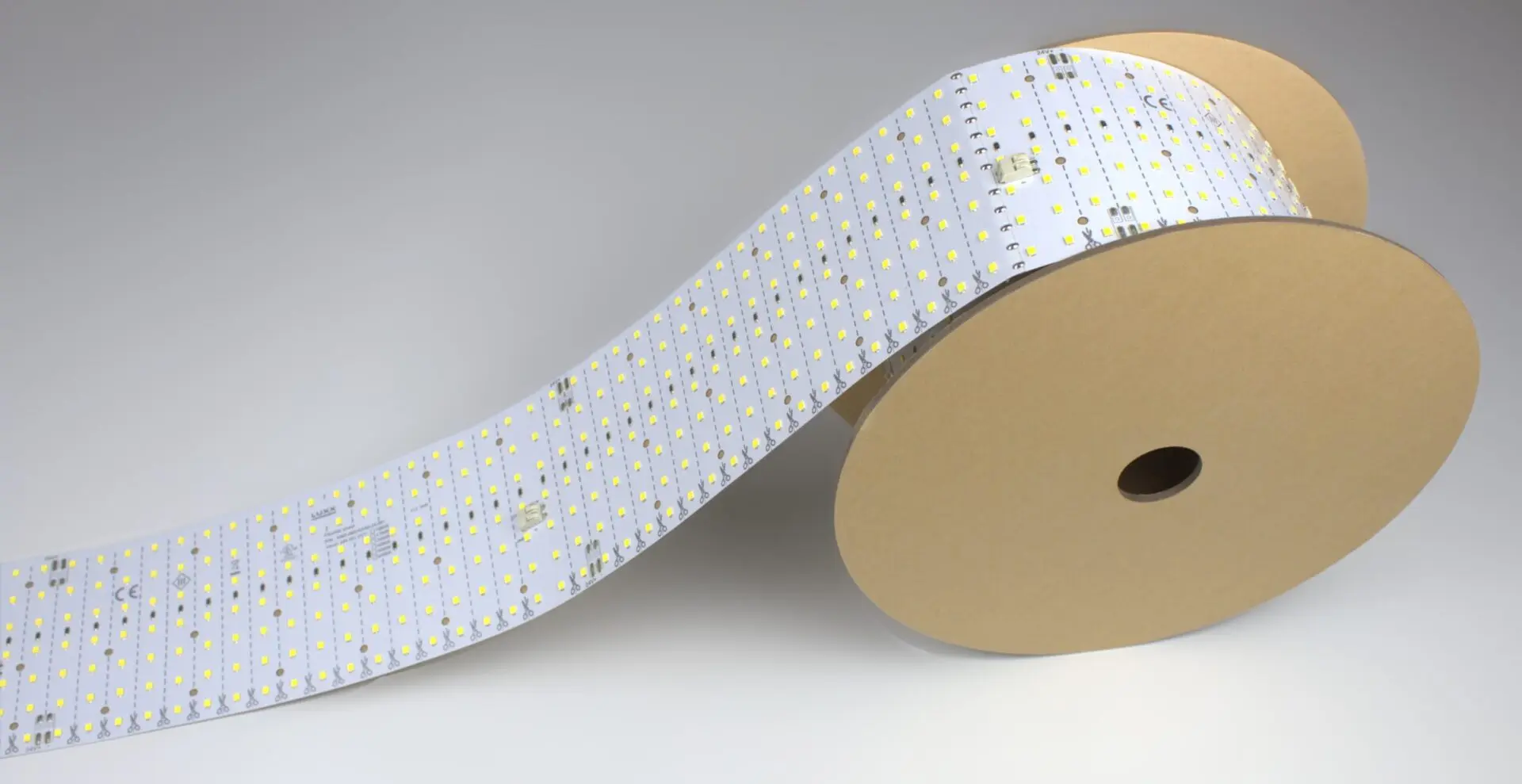
| Roll It! | Yes | Cut the roll to any length along marked lines. Same technique as the sheet variants. |
How do you cut a LightWave® sheet?
Cutting is a standard workshop operation. What matters is the line, not the tool:
- Lay the sheet flat on a clean cutting surface
- Identify the marked cut line closest to the size you need
- Cut cleanly along that line with a sharp utility knife, heavy-duty scissors, or a rotary blade — sheet is under 7 mm, no power tools needed
- Confirm the remaining section powers on before installing
- Terminate the cut edge per the product install guide (usually exposed pads either get soldered to leads or covered — see the product-specific manual)
Rule of thumb: if you can see the printed cut line, cut on it — not near it. See the LightWave install guide for step-by-step photos.
Can LED sheets be cut into curves and custom shapes?
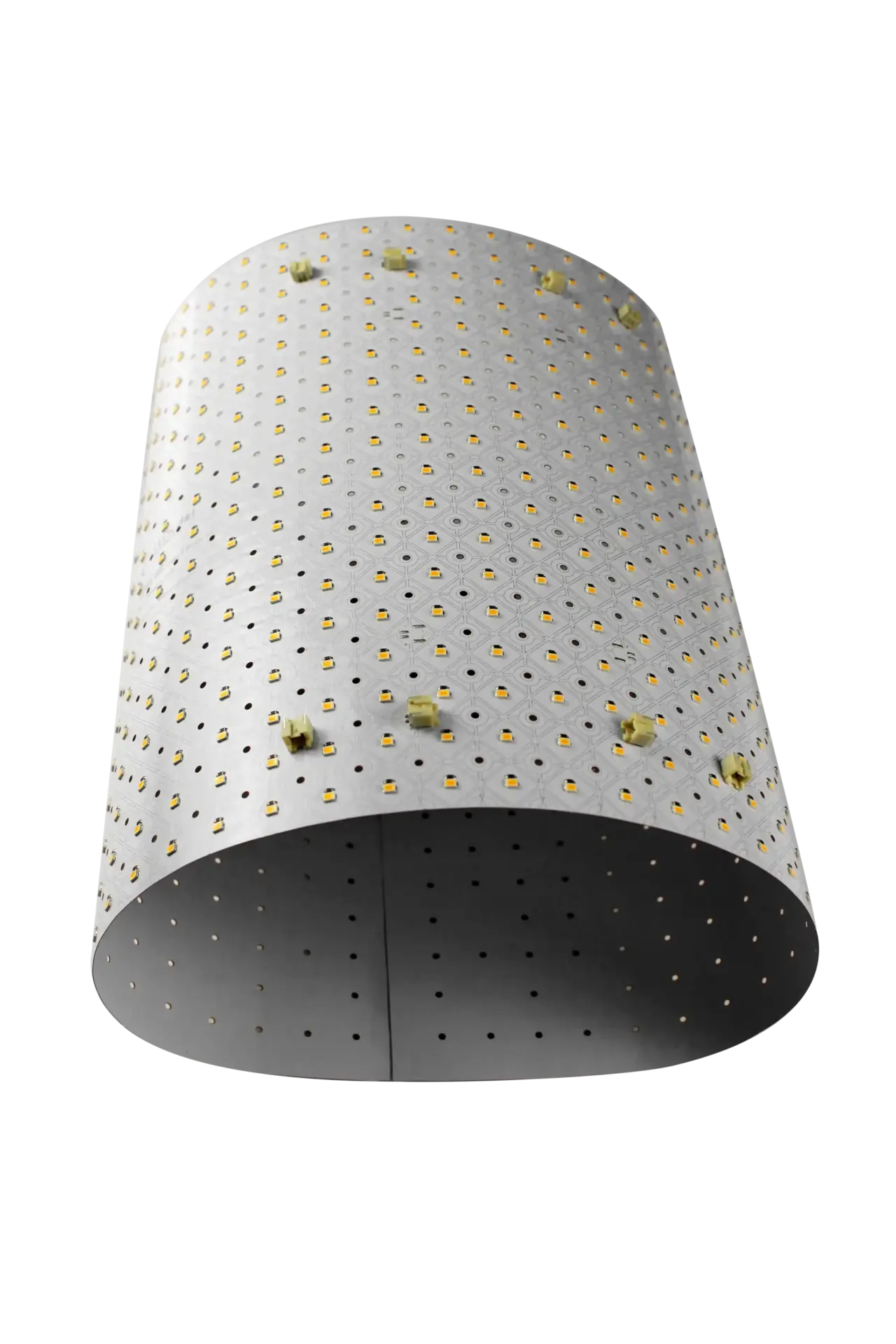
The marked cut lines define straight trims across the sheet. Between those trims, the sheet itself is flexible and can bend and wrap around curves — so a “custom shape” install is usually a combination of straight trims to size plus bending the trimmed section around the geometry of the fixture.
Common custom-shape scenarios:
- Angled trims — trim along two marked lines that intersect at the right angle for the fixture
- Curved surfaces — trim to rectangular size, then bend around the column or radius (sheet stays even under 7 mm and holds up to tight radii)
- Cutouts and complex frames — combine trimmed LightWave® sheets with LightWave® Roll It! so the large surface gets one continuous run and the intricate corners get individually trimmed sheets
If the shape is truly one-off and the trim lines will not give the outline the design needs, talk to LUXX about a custom OEM run cut to your exact profile.
Can you combine cut sheets with Roll It!?
Roll It! and the cuttable sheet variants are engineered to match — same LED spacing, same output, same color. On a large surface with intricate corners, run Roll It! across the primary square footage and drop in trimmed Gen 1 Plus or CH2 sheets at the corners and cutouts. The whole surface reads as one uninterrupted glow — no visible seam between the two formats.
What tools do you need to cut LED sheets?
- A clean, flat cutting surface
- A sharp utility knife, heavy-duty scissors, or a rotary blade
- A straightedge (helpful for utility-knife cuts)
- The product-specific install guide (each variant has one)
- For PIXX: awareness of the SPI data direction on the sheet
- Termination materials per the install guide (leads, connectors, or edge protection depending on the variant)